
Sektions
When you open a new dashboard, an empty section will be pre-loaded. A section is, so to speak, a “box” on the page that you can determine the content of. If you want to add a section to the dashboard, press one of the plus icons, which you will find respectively below and on the right side of the existing section. This will create a new section below or to the right of the section respectively.
There can be a maximum of four sections in width. The sections can be dragged larger and smaller by grabbing the edges with the mouse. You can also move the content of the sections around by dragging them to a different position.
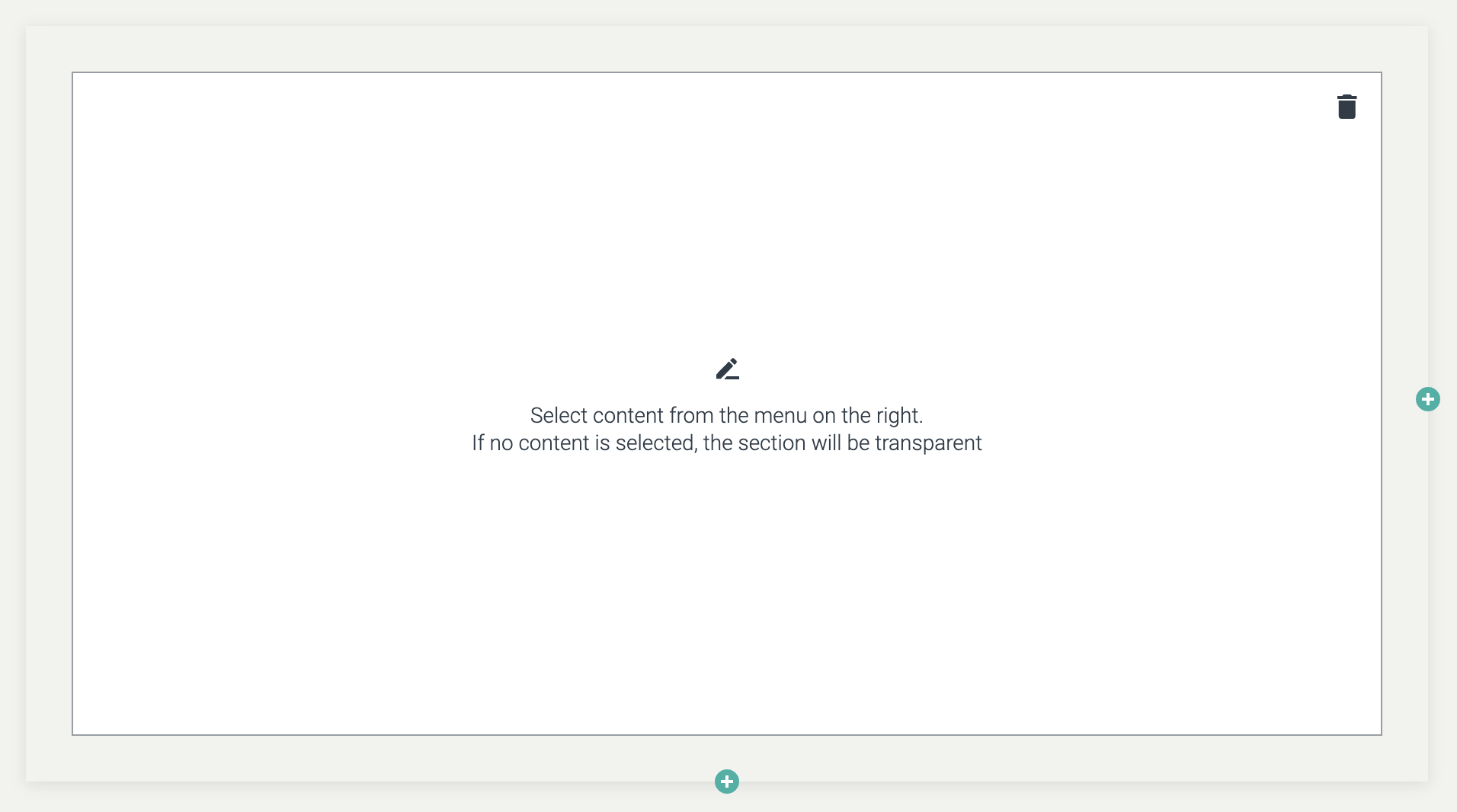
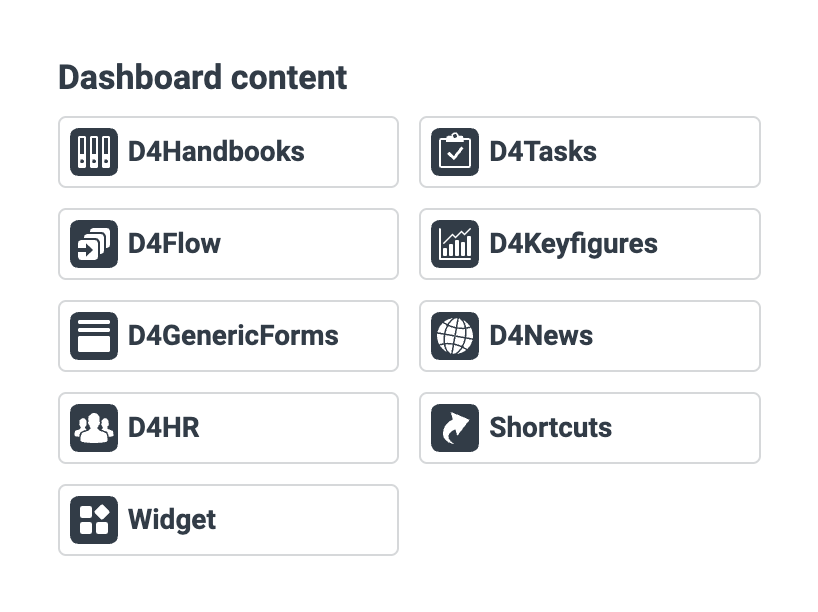
To select content for a section, first click the section to which you want to add content. On the right side of the screen, you will find a series of buttons used to select the content of the selected section on the dashboard.
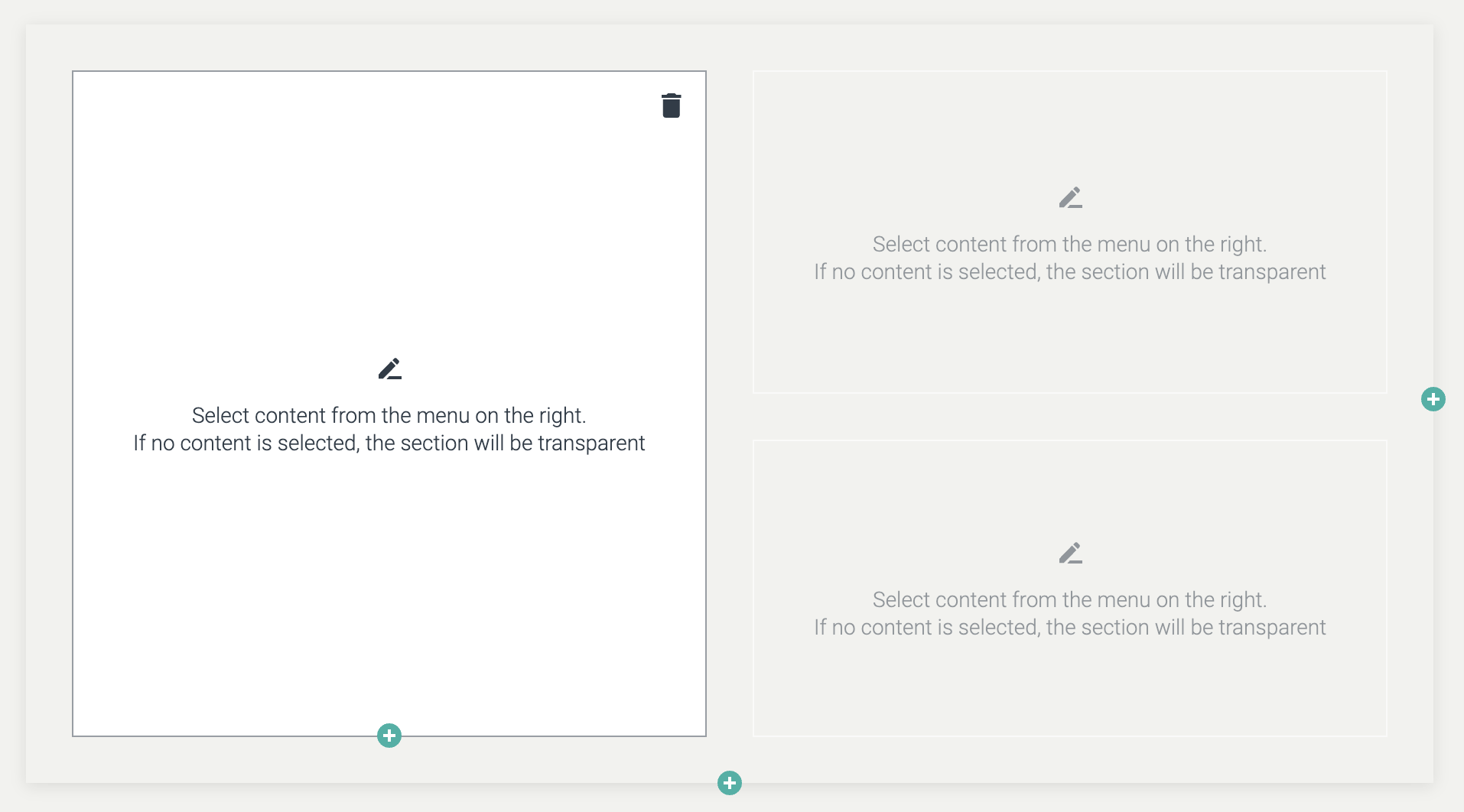
If you do not select any content for the section, the section will be transparent.
Regardless of which button you choose, these two options will appear as soon as you click a button in Dashboard content. In this example, the D4Handbooks button has been clicked, but as mentioned, this applies to all available buttons.
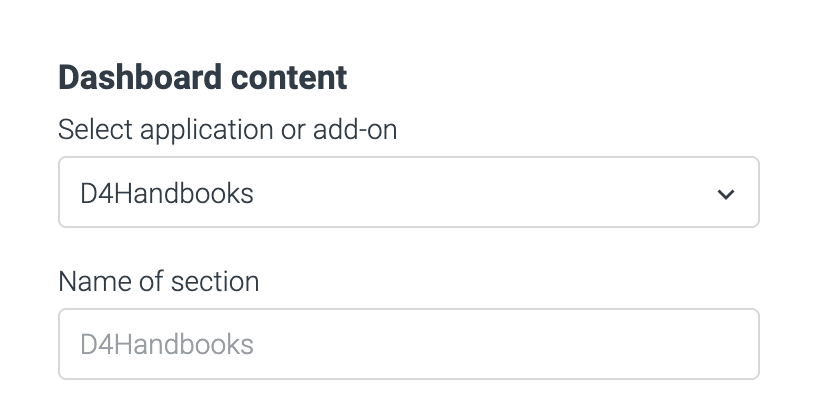
Add tool, shortcut or widget
Here, via the dropdown menu, you can choose which application or add-on the section should contain. It will be set as what you have chosen in the previous step. The reason this option is present is to allow you to change your choice of application or add-on without having to delete and then restore a section.
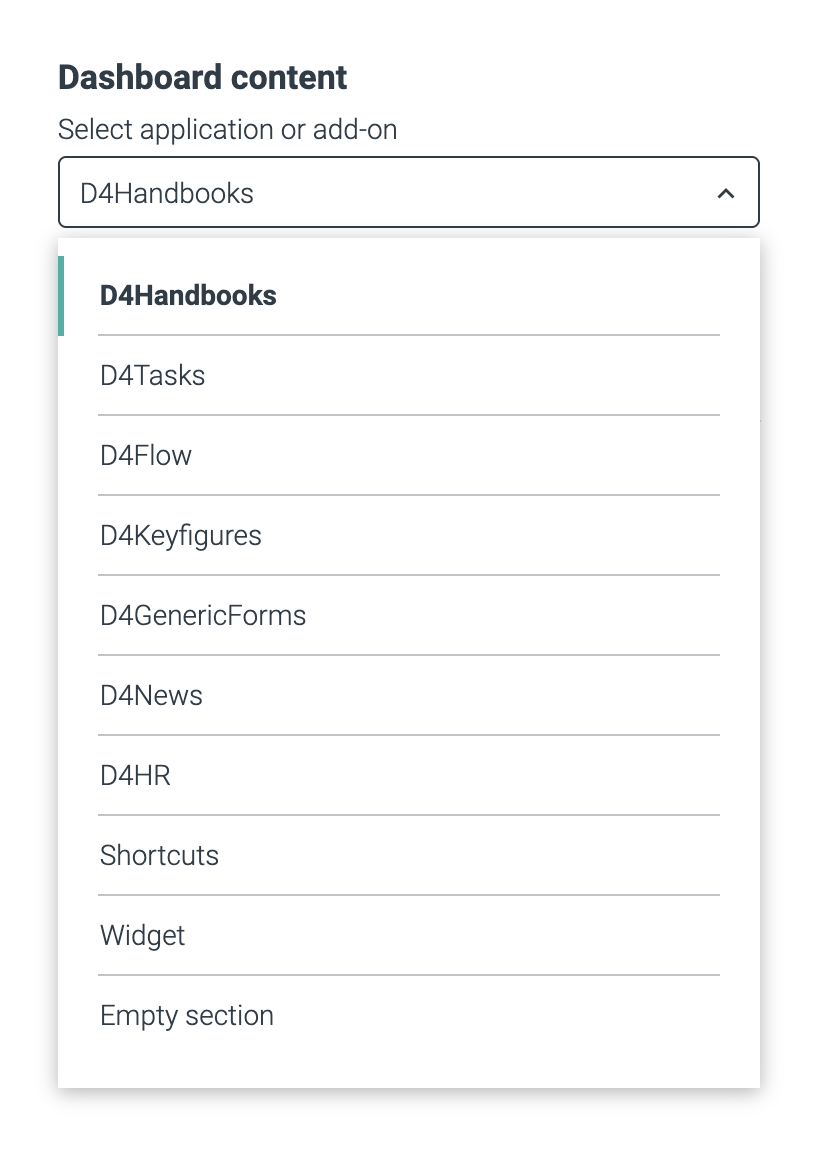
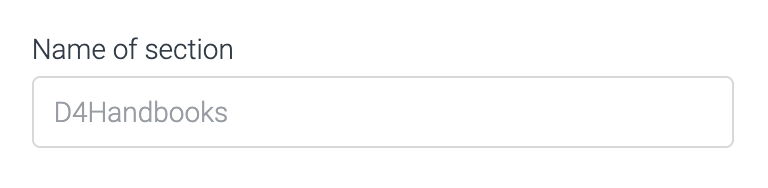
Name sektion
Here you can name the selected section. The name you type here will be displayed along with the icon in the upper left corner of the section. If you do not write anything in this field, the name of the selected application or add-on will appear together with the icon
Depending on the button you select, you will have additional options.
In the following, the content of the individual buttons will be reviewed.