
Create a dashboard group
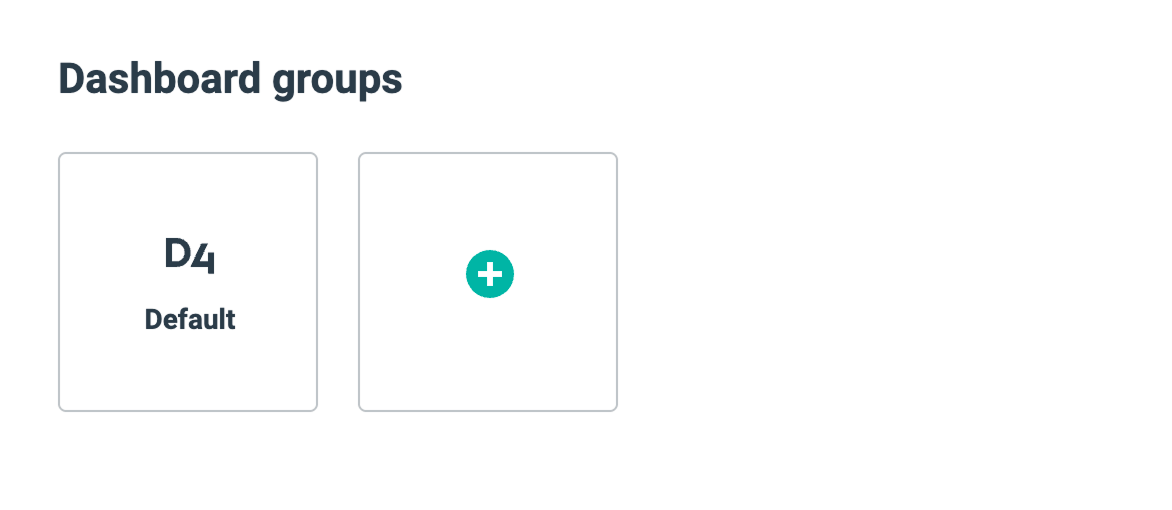
Start by creating a dashboard group by clicking the plus icon.
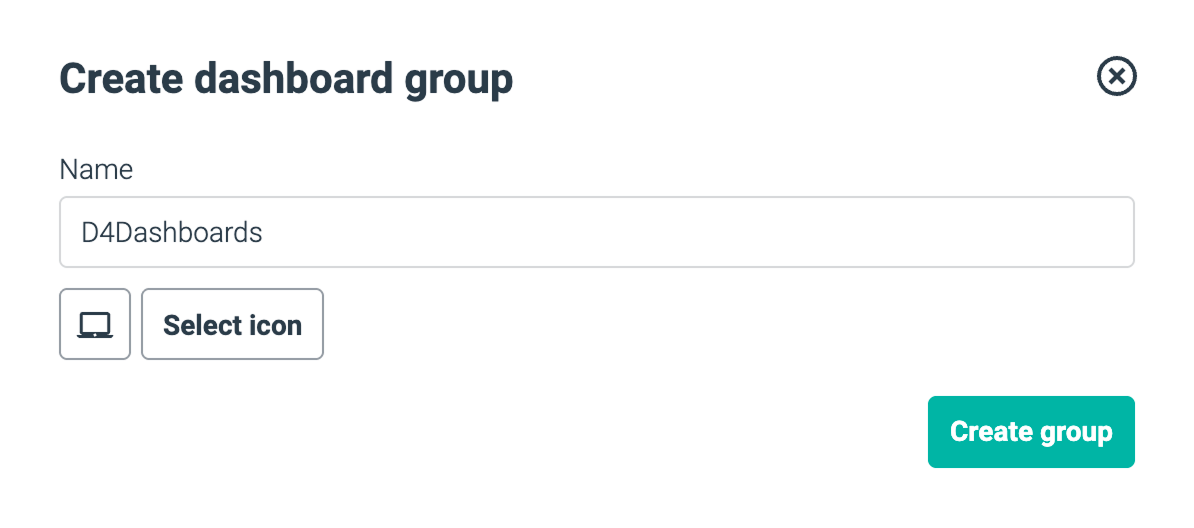
The popup shown below will then appear.
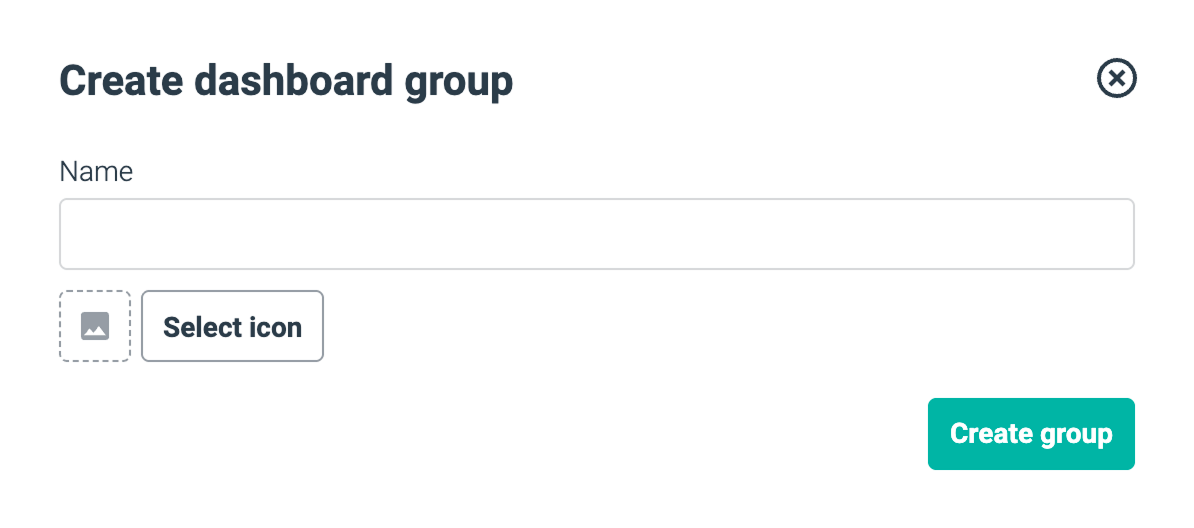
Name your group in the Name field and select an icon for the dashboard from the icon picker. The icon you choose will be displayed on your dashboard group in the overview.
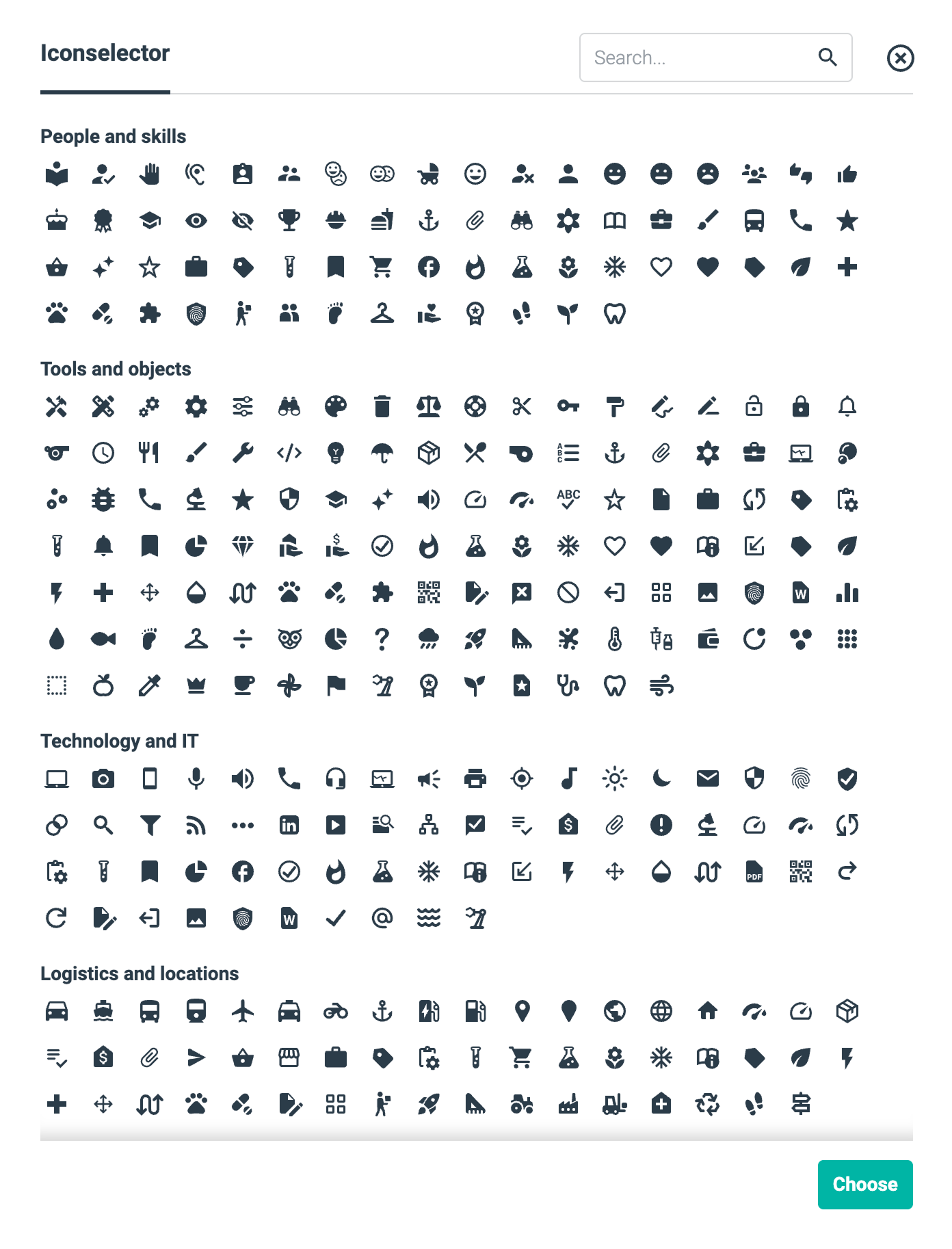
The icon picker consists of icons divided into categories. It is also possible to search for an icon here. Click on an icon to select it and then press the Select button.
The icon picker looks like this:
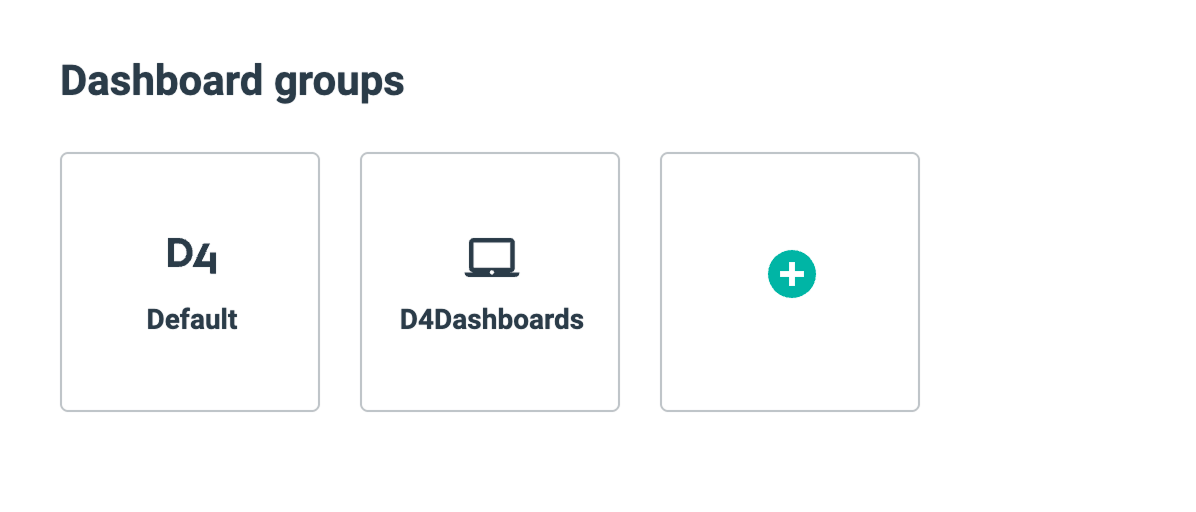
Your dashboard group will now appear in the overview.
In the example below, the group is called D4Dashboard, and an icon has been selected.
In the group overview, the group will now look like this:
Edit a dashboard group
Hover over the group, after which a pencil icon will appear.
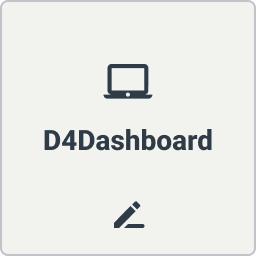
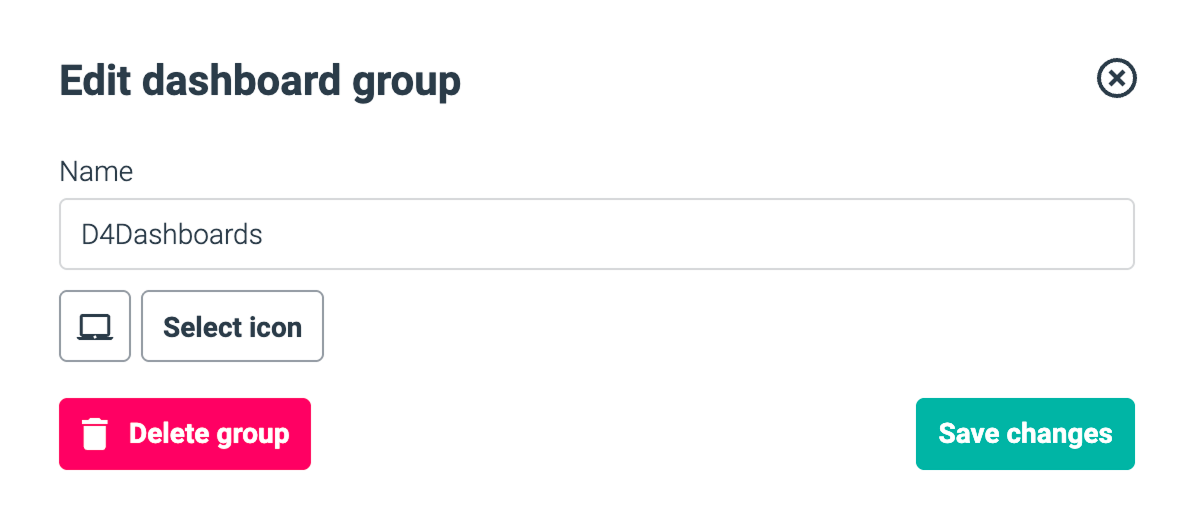
Click the pencil icon to change the name and icon or delete the group.
Note: If you delete the dashboard group, you will also delete all the dashboards associated with the group.